Note:UVC refers to USB cameras or devices that output video via USB
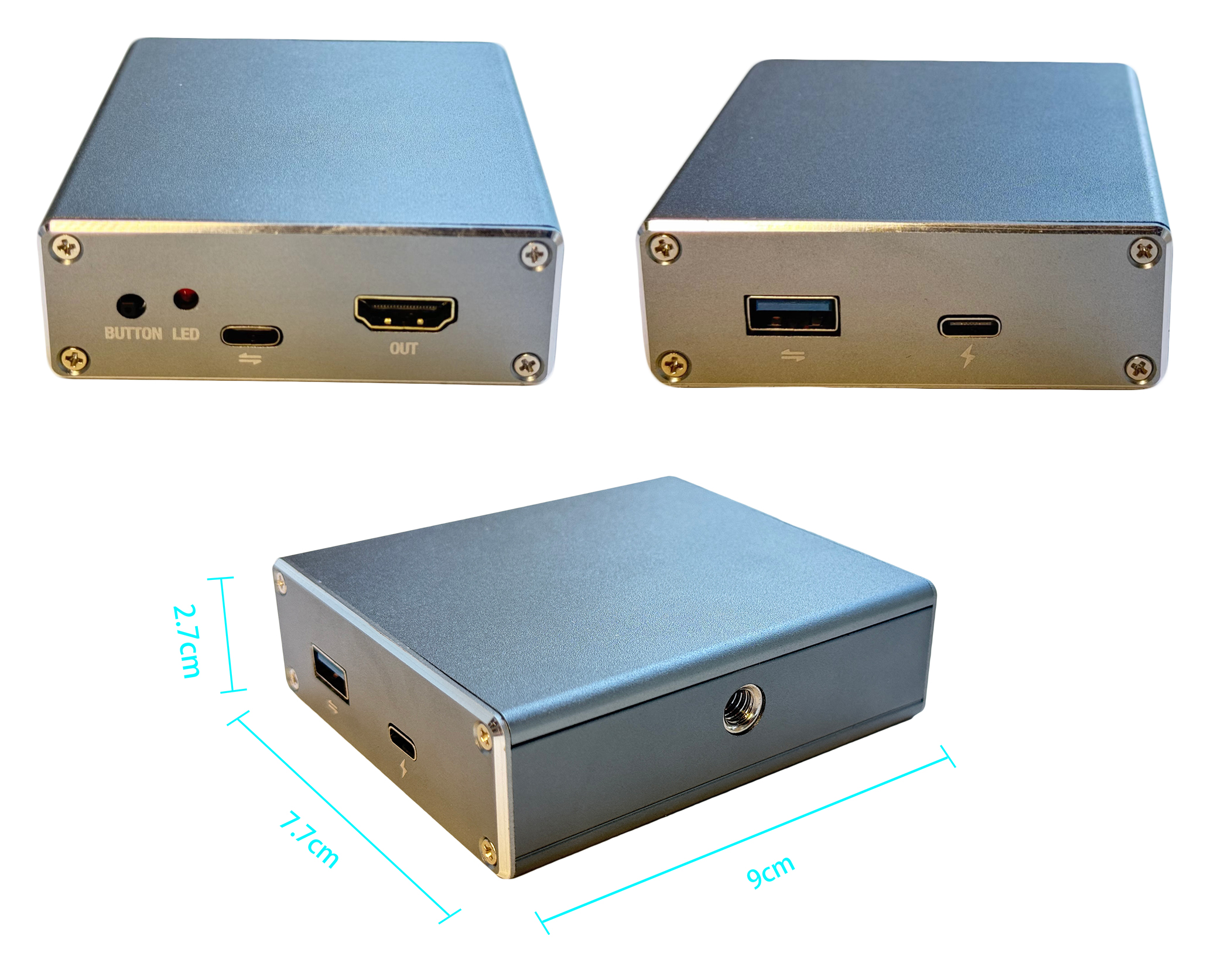
1. Product Introduction
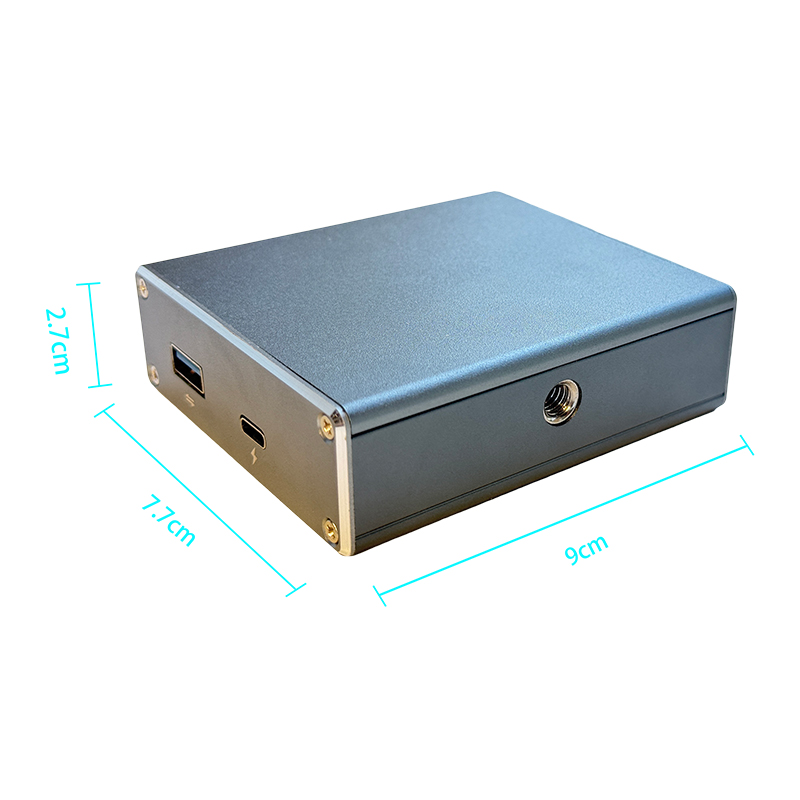
The UVC3.0 to HDMI converter can convert the camera signal that supports the UVC protocol into HDMI output and send it to devices that require HDMI signals, such as monitors, TVs, large screens, switchers, image transmitters, HDMI capture cards, etc. It supports the PD fast charging protocol and can charge the camera at the same time, ensuring that the camera can be used for a long time without power loss. It supports USB3.0, being compatible with mainstream UVC output devices such as Acer binocular cameras, BMD switchers, DJI Action 6, DJI Pocket 3, DJI Action 4, DJI Action 5, Insta X3, Insta X4, Insta X5, Logitech USB cameras, Hikvision USB cameras, etc.
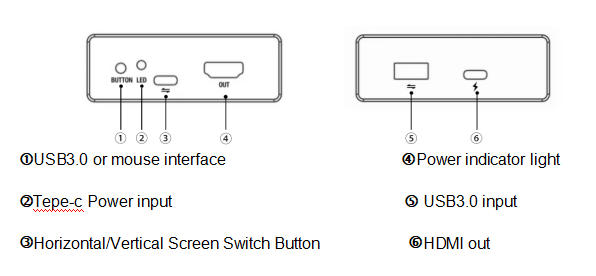
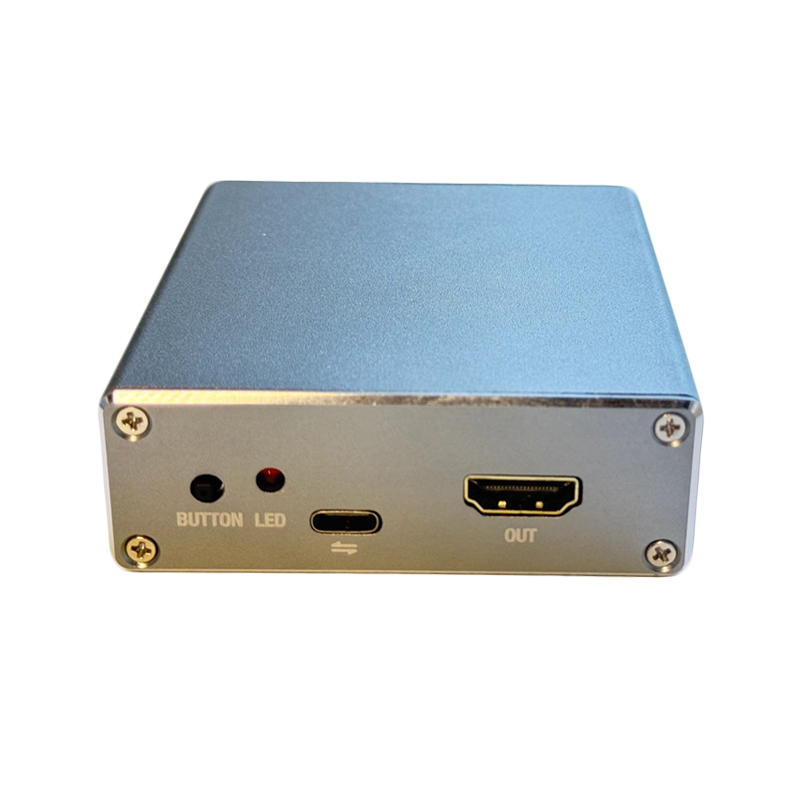
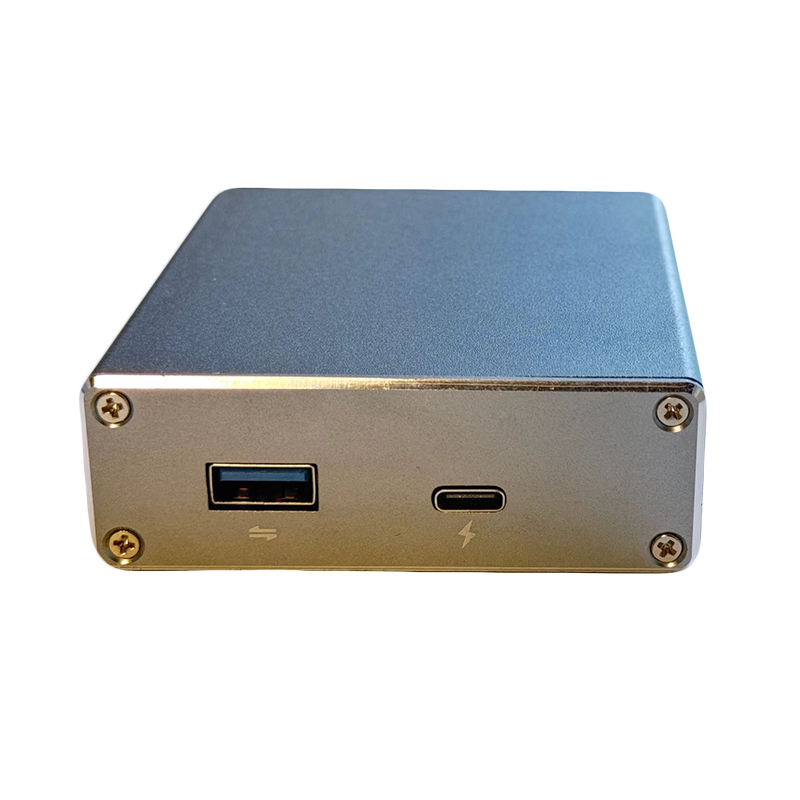
2.Product Interface
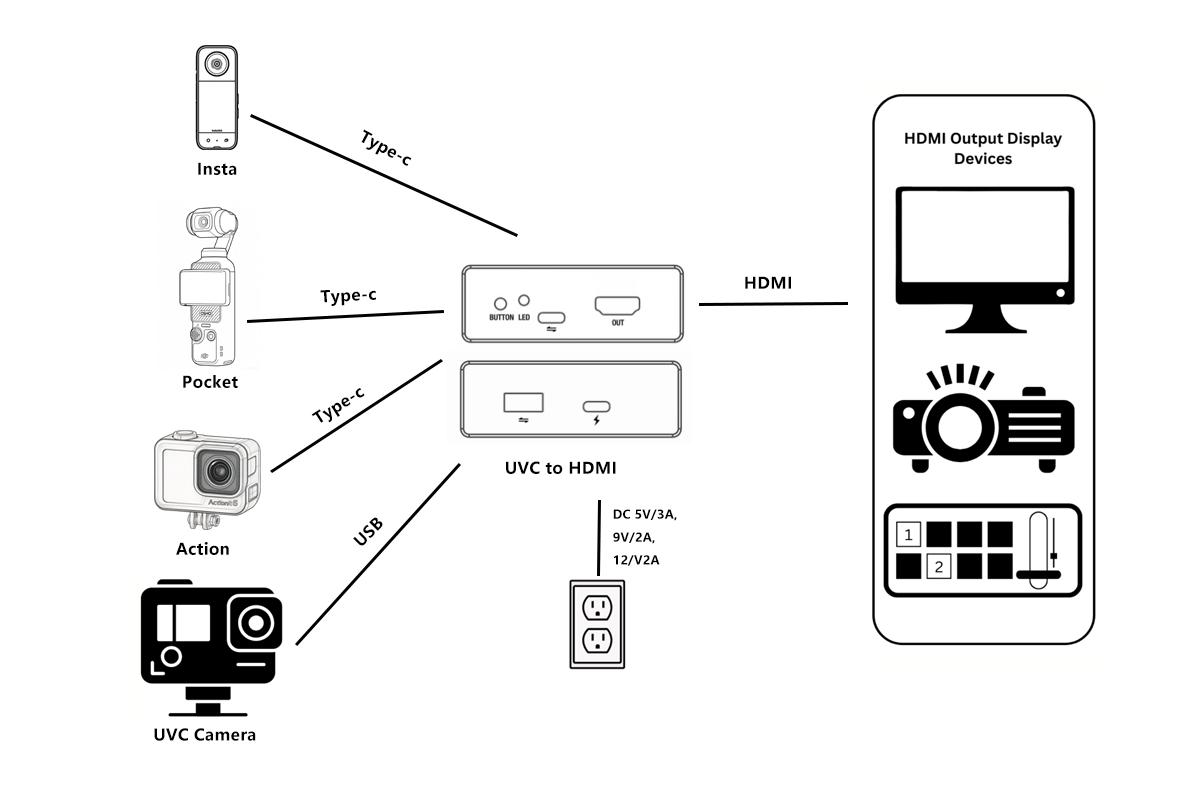
3. Application
1. Connected to monitor/TV/projector
Insert the UVC camera into a USB 3.0 port or a Type-C data transmission port, connect the HDMI cable to HDMI OUT, connect the other end of the HDMI cable to a display, and use a Type-C charging cable to plug into the Type-C charging port to supply power to the device.
2. Connected to Video Transmission Device
Insert the UVC camera into a USB 3.0 interface or a Type-C data transmission port, connect the HDMI cable to HDMI OUT, connect the other end of the HDMI cable to the image transmitter, and use a Type-C charging cable to plug into the Type-C port to power the device. Then connect the image transmitter to our display or switcher.
3. Connected to Video Switcher
Connect the USB 3.0 interface or Type-c data transmission port of the UVC camera, plug the HDMI cable into HDMI OUT, connect the other end of the HDMI cable to the switcher, and use a Type-c charging cable to plug into the Type-c port to power the device.
4. Connected to Other HDMI capture devices
Connect the USB 3.0 interface or Type-C data transmission port of the UVC camera, plug the HDMI cable into HDMI OUT, connect the other end of the HDMI cable to the HDMI capture card, and use a Type-C charging cable to plug into the Type-C port to supply power to the device.
5. Setting Video Parameters
You can connect the mouse on another USB port, HDMI out display, adjust some parameters of video output such as:
. output resolution
. vertical screen mode
. rotation
. color and other parameters
after setting, click the lower left corner to save the configuration.
6.Firmware Upgrade
1.Copy the upgrade file (do not extract) to a USB flash drive.
2.Insert the flash drive into any USB port on the device.
3.Power on the device and wait approximately 5 minutes for the upgrade to complete.
Important:
. Do not power off the device or remove the flash drive during the upgrade process.
. After completion, use a mouse to verify the new version number in the bottom-left corner of the settings menu.
. If the version is updated, you may safely remove the flash drive.
7.Troubleshooting
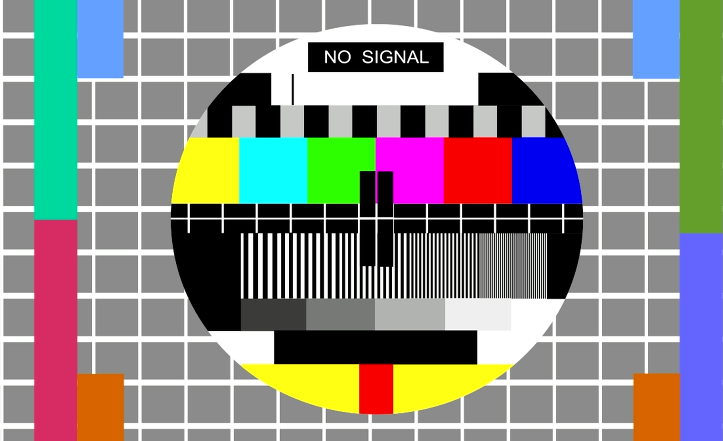
1. No Singnal on Display
- Indicates the video source is not being captured.
- Verify if the data cable between camera and our device is used.
- If the customer is using their own cable, replace it with the one provided in our kit.
2.Black Screen on Display/Capture Card:
- If the screen remains black after power connection:
- . Ensure the HDMI cable is not connected to the computer host; connect it directly to the computer display or the HDMI IN port of the capture card (avoid HDMI OUT).
3.Persistent Black Screen (Non-Resolving):
Contact customer support for assistance in either case.
Product Type: UVC to HDMI Converter
Model: UVC3HDMI
Function: Converts UVC protocol camera signals into HDMI output for monitors, TVs, large screens, switchers, image transmitters, and HDMI capture cards
Video Input: USB 3.0 input / Type-C data transmission port (for UVC cameras or devices)
HDMI Output: HDMI OUT port — connects to display, TV, projector, switcher, image transmitter, or HDMI capture card
Power Input: Type-C Power Input — supports PD fast charging protocol
Camera Charging: Yes — charges the camera simultaneously via PD fast charging
USB Standard: USB 3.0
Control Interface: Mouse interface (USB) — for adjusting video output parameters
Physical Button: Horizontal/Vertical Screen Switch Button
Adjustable Video Parameters: Output resolution, vertical screen mode, rotation, color, and other parameters (saved via lower-left corner save option)
Compatible Devices: Acer binocular cameras, BMD switchers, DJI Action 4/5/6, DJI Pocket 3, Insta360 X3/X4/X5, Logitech USB cameras, Hikvision USB cameras, and other mainstream UVC output devices
Application Scenarios: Monitor/TV/projector connection, video transmission device connection, video switcher connection, other HDMI capture device connection
Firmware Upgrade: Supported via USB flash drive (copy upgrade file without extracting; insert into any USB port; power on and wait ~5 minutes; verify version via mouse in settings menu)
Upgrade Precautions: Do not power off the device or remove the flash drive during upgrade
Troubleshooting: "No Signal" on display (check data cable / use provided cable); black screen on display/capture card (connect HDMI directly to display or HDMI IN port, avoid HDMI OUT); persistent black screen (contact customer support)

 +86 15521003315


 HOME


 WhatsApp: +86 15521003315
 Related Suggestion
 Sep 19,2023


 Tel
 Email
 Address


 INQUIRY US FOR DISCOUNT